- Chrome DevTools MCP connects AI coding agents directly to a live Chrome browser via CDP + Puppeteer, letting them read console errors, network requests, and performance data instead of guessing from copy-pasted error messages.
- Setup is one JSON config block, works with Claude Code, Cursor, Gemini CLI, and Copilot — not the standard Claude.ai chat interface.
- In F22's own testing: caught a React useEffect bug causing 371 duplicate API calls, ran full Core Web Vitals traces, and completed a full BookMyShow ticket booking flow with zero automation scripts written.
- It's not a Playwright replacement, Playwright is still better for deterministic CI/regression testing; Chrome DevTools MCP is built for debugging, profiling, and exploration.
- Real limitations: Chrome-only (no Firefox/Safari), higher token cost than Playwright, and still a public preview as of this writing, so expect some rough edges.
Every developer has spent time staring at the Chrome DevTools panel, hunting down a slow network request, tracing a console error, or profiling a render bottleneck. It's powerful. But it's always been a manual process.
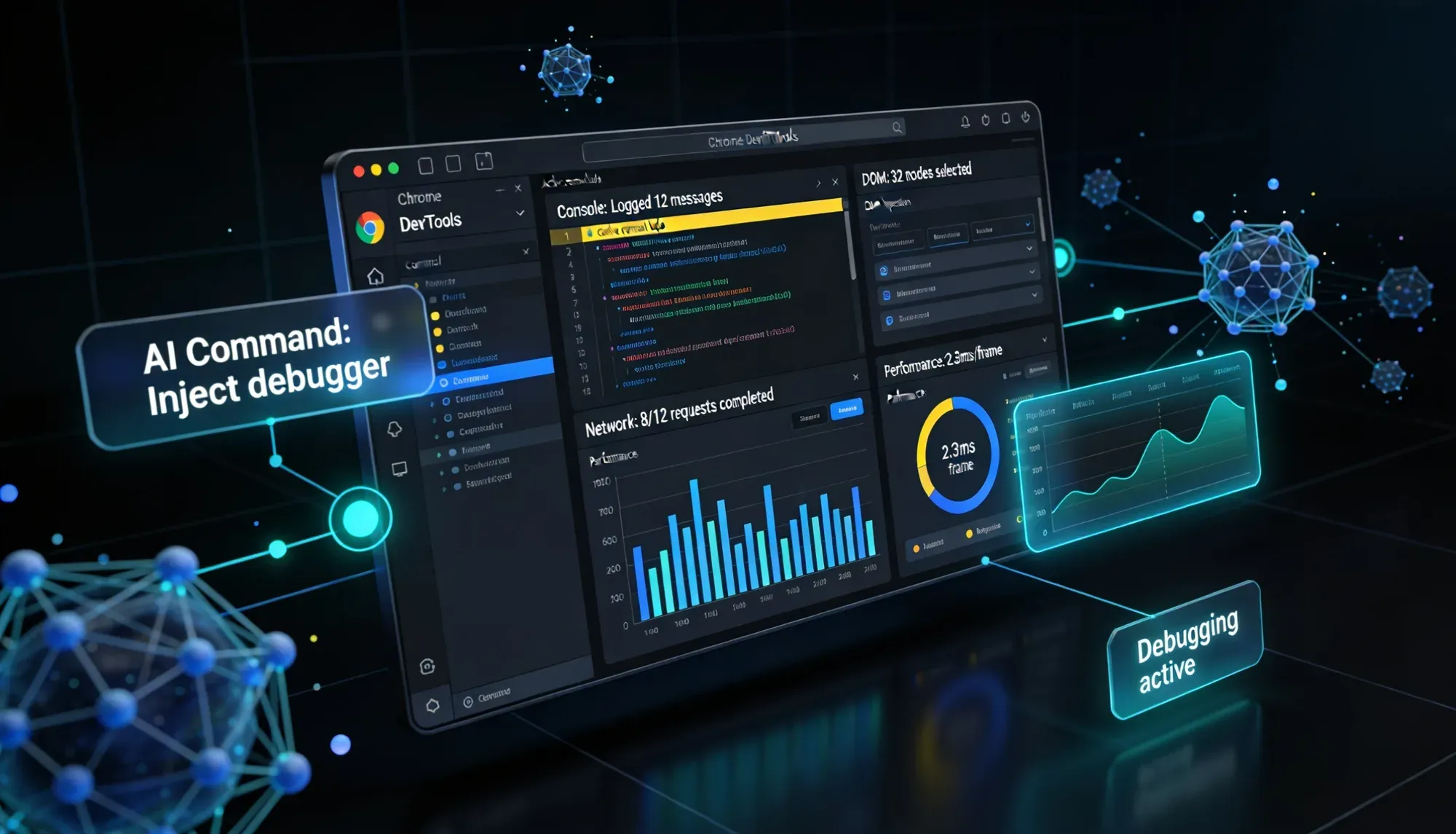
Chrome DevTools MCP changes that. It's an npm package that acts as an MCP server, connecting your AI coding assistant directly to a live Chrome browser. Your agent can now inspect, debug, and profile web applications the same way you do, through Chrome's own DevTools.
What is Chrome DevTools MCP?
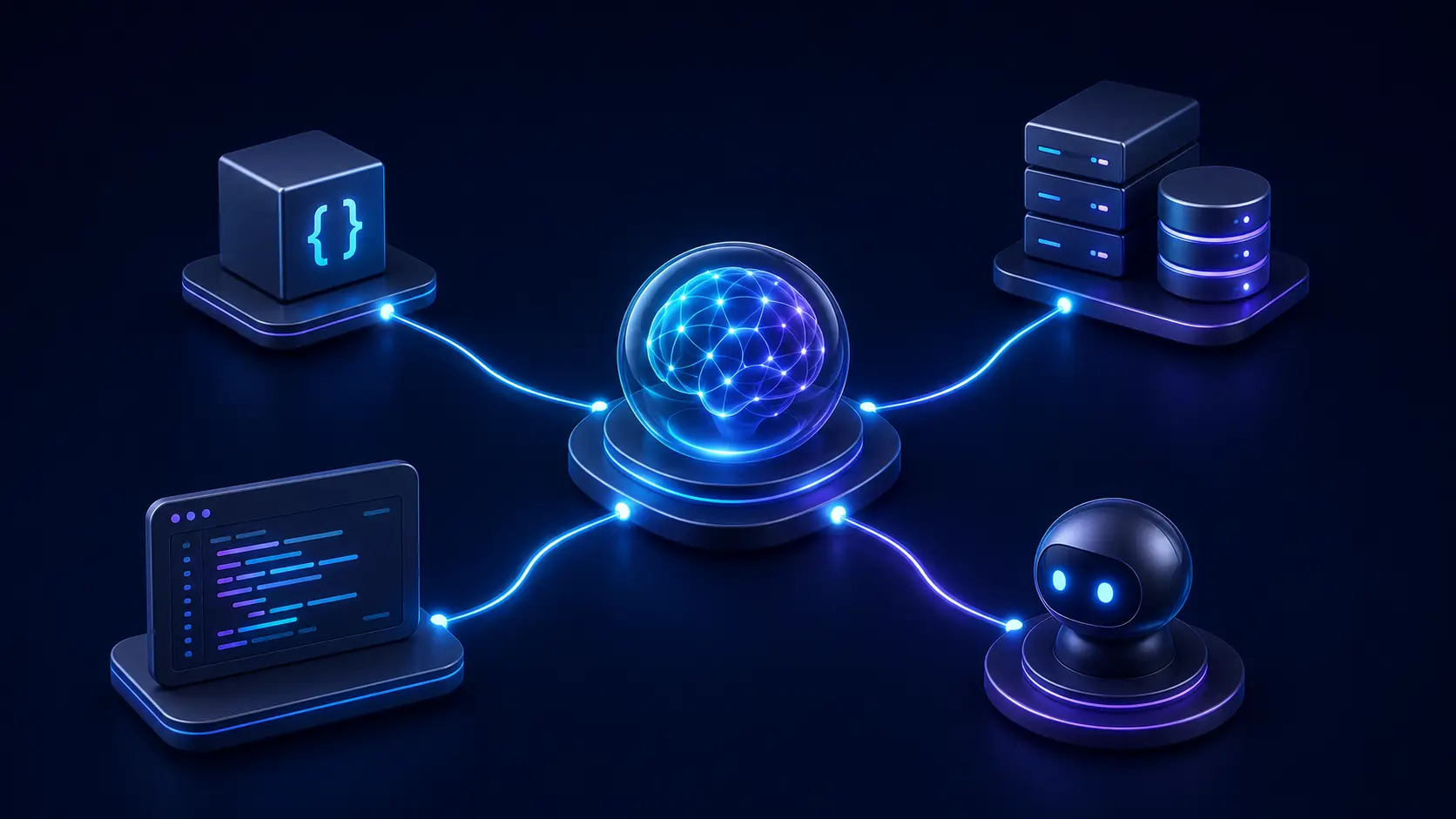
Chrome DevTools MCP is an MCP server that bridges AI coding agents like Claude, Cursor, Copilot, or Gemini, to Chrome's native debugging interface.
Under the hood, it uses three things:
- Chrome DevTools Protocol (CDP) - Chrome's low-level debugger interface
- Puppeteer - a battle-tested Node.js library for reliable browser automation
- MCP transport layer - so any MCP-compatible AI agent can invoke DevTools tools via natural language
The Problem Chrome DevTools MCP Solves
Before Chrome DevTools MCP, AI coding agents were effectively programming with a blindfold on. The typical debugging loop looked like this:
- AI writes code
- Developer runs it in the browser
- Developer copies the error and pastes it back into the AI
- AI guesses a fix
- Repeat
With Chrome DevTools MCP, the AI becomes a self-sufficient debugging agent. It reads console errors directly, inspects network requests, checks what is rendered on screen, and verifies that the fix actually worked, all on its own.
How to Set Up Chrome DevTools MCP?
Setting up Chrome DevTools MCP takes under two minutes. You need Node.js v20.19+ and Chrome (stable) installed.
Installation
Add this to your MCP configuration file (mcp.json or claude_desktop_config.json):
{
  "mcpServers": {
	"chrome-devtools": {
  	"command": "npx",
  	"args": ["-y", "chrome-devtools-mcp@latest"]
	}
  }
}
For Claude Code, use the CLI shortcut:
claude mcp add chrome-devtools npx chrome-devtools-mcp@latestWhen an AI agent needs to use a browser tool, the MCP server automatically launches a Chrome instance with an isolated profile. There are two ways to connect it to an existing Chrome session instead:
- --autoConnect (recommended, Chrome M144+) — Lets the MCP server request a remote debugging session on your running Chrome. Enable it at chrome://inspect/#remote-debugging, then add --autoConnect to your MCP config args.
Chrome will prompt for permission each time. You can also hand off active DevTools sessions, select a network request or DOM element and ask the AI to investigate it directly.
- --browserUrl (manual) — Connect to a Chrome instance started with --remote-debugging-port=9222. Useful in sandboxed environments or when --autoConnect is unavailable.
Real World Usage: Four Scenarios We Tested at F22 Labs
We tested Chrome DevTools MCP across four real scenarios. Here is what we found.
1. Console Error Debugging
We had a persistent error in our application console that we could not track down easily. Instead of manually reading the stack trace and relaying it to the AI, we let Chrome DevTools MCP take over.
The workflow was straightforward:
- AI called list_console_messages and the AI read all errors directly from the browser
- Used get_console_message to inspect the specific error with its full source-mapped stack trace
- The AI identified the root cause, generated a fix, and navigated back to the page to verify the error was gone
The entire debugging cycle, from error to verified fix, happened without us manually copying a single line.
2. Performance Tracing with Real Core Web Vitals
We ran a full performance trace on the LiveKit documentation site across three navigations. The AI started a trace with performance_start_trace before navigating, capturing metrics from the very first byte, clicked through two pages on docs.livekit.io, then stopped the trace with performance_stop_trace and called performance_analyze_insight to extract actionable data.

Walk away with actionable insights on AI adoption.
Limited seats available!

The trace file (livekit_complete_metrics_trace.json.gz, 24 MB) loads directly into Chrome's Performance panel for visual inspection. Here's what the AI surfaced:
| Metric | Value | Status | What It Means |
LCP (Largest Contentful Paint) | 2,244 ms | Fair | Time for main content to render |
INP (Interaction to Next Paint) | 116 ms | Good | Page responsiveness to user input |
CLS (Cumulative Layout Shift) | 0.04 | Excellent | Visual stability, almost no shifts |
LCP at 2,244 ms indicates the main content is taking slightly too long to paint, a signal to investigate render-blocking resources or large images above the fold. INP at 116 ms is well within Google's "good" threshold of under 200 ms. The CLS of 0.04 is excellent, meaning the layout is stable as it loads.
3. Network Request Inspection
One of the most powerful use cases we found was network debugging. Using list_network_requests, we discovered a single API endpoint being called 371 times during a single page load, completely invisible without tooling.
The cause was a missing dependency array in a useEffect hook, a classic React mistake that creates an infinite loop of API calls. Chrome DevTools MCP surfaced it in seconds, listed all network requests, filtered by endpoint, identified the repeat pattern, traced it back to the component, and generated the corrected useEffect.
What would typically take significant manual effort to isolate was diagnosed immediately.
4. Lighthouse Audit
The lighthouse_audit tool runs a full Lighthouse audit across performance, accessibility, SEO, and best practices, and returns structured results the AI can act on directly.
We ran it against a technical blog post page. It surfaced a complete performance score with specific improvement opportunities, accessibility issues like missing alt text and low contrast elements, SEO gaps such as missing meta descriptions, and best practices violations including missing HTTPS references and deprecated APIs.
The AI then suggested concrete code changes for each finding, prioritized by impact. The output included interactive HTML reports (lighthouse_desktop_report.html, lighthouse_mobile_report.html) that open directly in Chrome.
All 26 Chrome DevTools MCP Tools
Chrome DevTools MCP provides 26 tools organized into six categories:
| Category | Key Tools | Use Case |
Input Automation | click, drag, fill, fill_form, hover, press_key, type_text, upload_file | UI testing, form submission, E2E flows |
Navigation | navigate_page, new_page, select_page, close_page, list_pages, wait_for | Multi-page flows, tab management |
Emulation | emulate, resize_page | Dark/light mode, mobile viewport, throttling |
Performance | performance_start_trace, performance_stop_trace, performance_analyze_insight, take_memory_snapshot | CWV metrics, heap analysis |
Network | list_network_requests, get_network_request | API call audit, request inspection |
Debugging | take_screenshot, take_snapshot, evaluate_script, get_console_message, list_console_messages, lighthouse_audit | Console errors, a11y tree, JS eval |
Emulation: Testing Real World Conditions Without Leaving Your Desk
The emulate tool covers scenarios that are otherwise tedious to test manually:
- Viewport resizing — test your layout at any mobile or tablet breakpoint
- Dark/light mode toggle — verify your theme implementation instantly
- Network throttling — simulate Slow 3G or 4G to expose performance regressions
- CPU throttling — simulate low-end device performance
- Geolocation spoofing — test location-aware features without changing your physical location
In our testing, we used resize_page to check the LiveKit docs at mobile dimensions and emulate to switch to light mode. Both changes applied in seconds and the AI captured screenshots to verify the rendering.
Chrome DevTools MCP vs. Playwright
A common question: how does this differ from Playwright? The short answer is that they solve different problems.
| Dimension | Chrome DevTools MCP | Playwright |
Primary purpose | AI-driven debugging and analysis | Deterministic test automation |
Requires code? | No, natural language instructions | Yes, scripts in JS/Python/etc. |
Performance tracing | Built-in with CWV extraction | Limited, requires custom setup |
Lighthouse audit | Native tool | Not built-in |
Memory snapshots | Yes | No |
Best for | Debugging, exploration, POC | CI pipelines, regression tests |
Token cost | Higher (richer tool calls) | N/A (not AI-native) |
The two tools are complementary, not competing. A productive workflow is to use Chrome DevTools MCP to identify the right automation strategy, then convert findings into a deterministic Playwright script for CI pipelines.
Booking a Ticket on BookMyShow Without Writing a Single Script
We tested a full ticket booking flow on BookMyShow, a real production website with authentication, seat selection, and payment flows. The AI navigated to the site, selected a movie, chose the venue and showtime, clicked through the seat selection UI, and filled the booking form.

No automation script was written. The AI orchestrated the entire flow using click, fill, navigate_page, and wait_for, showing exactly what AI-driven QA looks like when test cases are written in plain language and executed against live applications.
Advantages of Chrome DevTools MCP
Here is what makes Chrome DevTools MCP worth adding to your workflow:
• Zero setup friction, one JSON config block, and it works
• Gives AI agents ground truth; they see real browser behavior, not theoretical output
• Official Google support, maintained by the Chrome DevTools team
• Works with every major AI assistant, Claude, Gemini, Cursor, Copilot, JetBrains Junie
• Covers the full debugging surface, console, network, performance, accessibility, heap
• Isolated by default, AI browsing does not touch your personal Chrome profile
Limitations of Chrome DevTools MCP
That said, it is not without trade-offs:
• Token cost is higher than Playwright; each tool call returns rich data
• Not suitable for deterministic CI testing; use Playwright for that
• Requires Chrome stable, no Firefox or Safari support
• Public preview: some features may change or have rough edges
When to Use Chrome DevTools MCP?
Good Fit
If your work involves debugging, profiling, or exploring, this is the right tool:
Walk away with actionable insights on AI adoption.
Limited seats available!
• Debugging console errors in a live application
• Profiling Core Web Vitals and identifying performance bottlenecks
• Auditing network traffic for redundant or excessive API calls
• Running Lighthouse audits and acting on findings immediately
• Exploring automation strategies before committing to a test framework
• POC and exploratory testing on unfamiliar codebases
Not the Right Tool
Not everything is a good fit though:
• Stable CI/CD regression testing, Playwright or Cypress are better suited
• Cross-browser testing, Chrome DevTools MCP is Chrome only
• High-volume automated test suites, token costs add up
Conclusion
The breakthrough here is not browser automation, Playwright has done that for years. The breakthrough is giving AI agents access to the same diagnostic data a developer sees in DevTools.
Real console errors with source-mapped stack traces. Real network request payloads. Real Core Web Vitals from actual user flows. Real Lighthouse scores.
When an AI can read what is actually happening in the browser, it stops guessing. Its fixes become grounded in real runtime behavior. That changes the quality and speed of AI-assisted debugging fundamentally.
Frequently Asked Questions
Does Chrome DevTools MCP work with Claude.ai chat?
No. It works with AI coding assistants that support MCP tool calling, Claude Code, Cursor, Gemini CLI, and Copilot. The standard Claude.ai chat interface is not supported.
Will it interfere with my personal Chrome profile?
No. It uses a separate Chrome profile by default. Add the --isolated flag if you want a temporary profile that gets deleted when the session ends.
Can I connect it to a Chrome window I already have open?
Yes, two ways. --autoConnect (Chrome M144+) lets the MCP server request a debugging session on your running Chrome — enable it at chrome://inspect/#remote-debugging and Chrome will prompt for permission. This also lets the AI read elements or requests you have already selected in DevTools. Alternatively, --browserUrl connects to a Chrome instance you started manually with --remote-debugging-port=9222.
How does it compare to screenshot-based AI browser agents?
Screenshots cost around 2,000 tokens per image and return unstructured visual data. Chrome DevTools MCP responses are compact JSON — typically 20 to 100 tokens, with precise, machine-readable data. Faster and more accurate.
Can I use this in a CI pipeline?
Yes. Run it with --headless --isolated for server environments. It integrates with GitHub Actions for automated performance regression detection on pull requests.
Is it production-ready?
It launched as a public preview in September 2025. Stable enough for development and QA workflows, but treat it as evolving software for now.

Walk away with actionable insights on AI adoption.
Limited seats available!