- OpenClaw is a local AI agent that can execute tasks from text commands, not just respond like a chatbot.
- The fastest setup path is the official installer, which sets up the Gateway, onboarding flow, authentication, and chat session. OpenClaw’s docs describe the getting-started flow as installing OpenClaw, running onboarding, and starting a working chat session.
- Start with only 2–3 tools enabled, such as one messaging channel, browser access, and one work tool. This keeps the setup easier to test and reduces unnecessary risk.
- Security matters more than installation speed because OpenClaw can access tools, credentials, files, and external services depending on your configuration. Recent security research highlights that always-on agent systems with persistent access can create serious attack surfaces.
- The best OpenClaw setup is minimal at first: choose a model provider, restrict who can send commands, keep the Gateway local, test simple tasks, and expand permissions only after the workflow is reliable.
OpenClaw is built for a different kind of AI workflow. Instead of only answering questions, it can connect to approved tools and carry out tasks on your computer from simple text commands.
That makes setup more important than a normal AI tool installation. You are not just installing software; you are deciding which tools it can access, who can send commands, and how much control the agent should have.
A clean setup comes down to three things: enabling only the tools you need, keeping permissions tight, and testing each workflow before expanding access.
AI is already part of many developer workflows. Stack Overflow’s 2025 Developer Survey found that 84% of respondents use or plan to use AI tools in their development process, which explains why local agent tools like OpenClaw are getting more attention.
In this guide, I’ll break down how OpenClaw actually works, how to set it up cleanly, and what to avoid so it doesn’t become messy or risky over time.
What is OpenClaw?
OpenClaw is a local AI assistant that runs on your own device and can respond through channels you already use, such as chat apps. Its main difference from a normal chatbot is that it can connect to configured tools and perform actions when you give it a command.
For example, if you send a command like “send the daily report to Slack,” OpenClaw can route that request through an approved messaging or workflow tool, depending on how you have configured it.
It runs on your machine and only uses the tools you enable, which means every action is controlled and limited by your setup. This is what makes it useful, but also why setup and permissions actually matter.
How OpenClaw Actually Works?
Before setting it up, one thing confused me initially. The project is called OpenClaw, but the terminal agent shows up as “Clawdbot”. It’s the same system, just different naming inside the setup.

Most AI tools stop at responses.
OpenClaw is different because it actually takes action on your computer. It is a local program that reads your normal text messages and turns them into real tasks. Instead of only explaining how to update a spreadsheet, it can use an approved tool or workflow to perform the update directly.
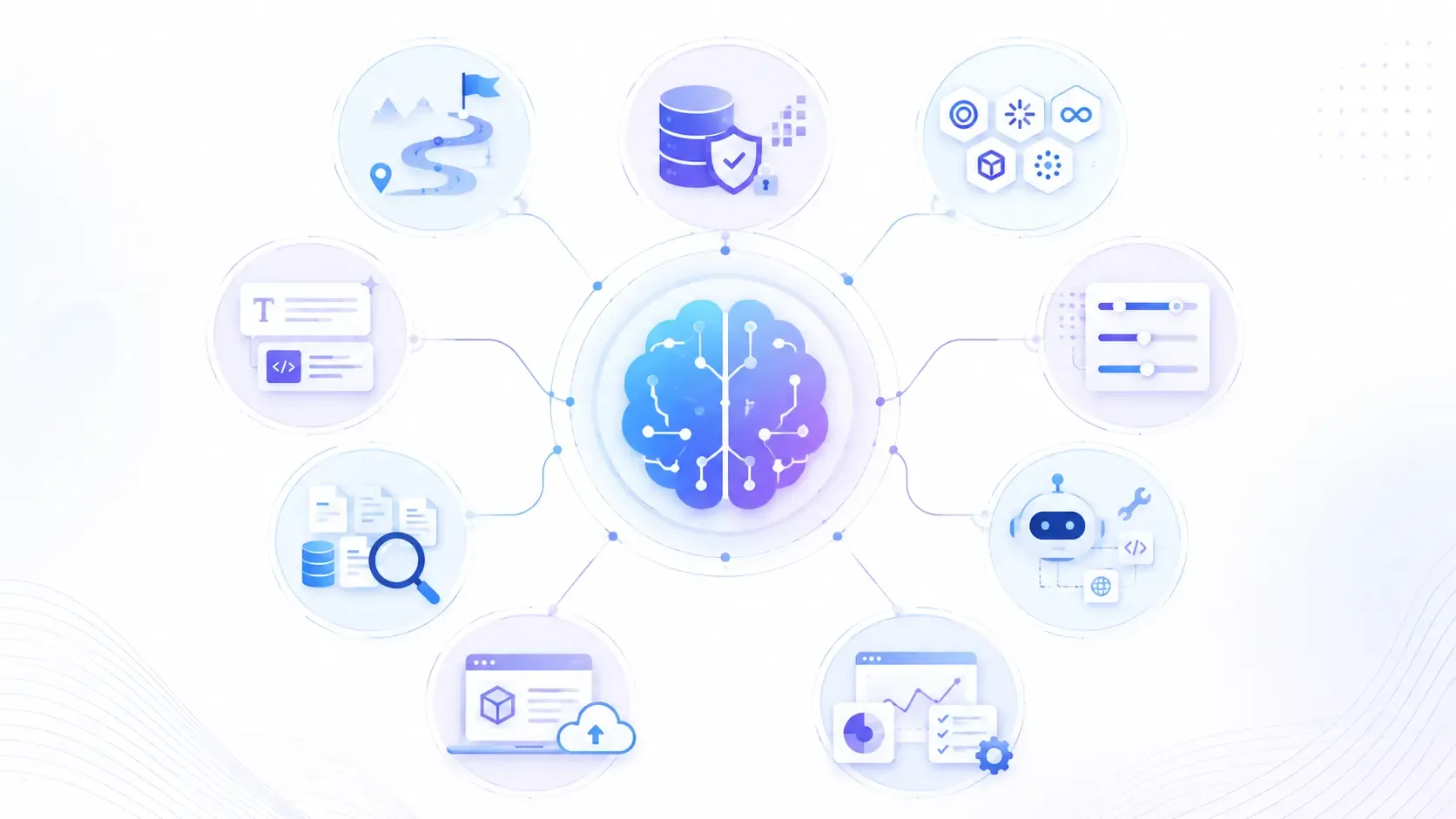
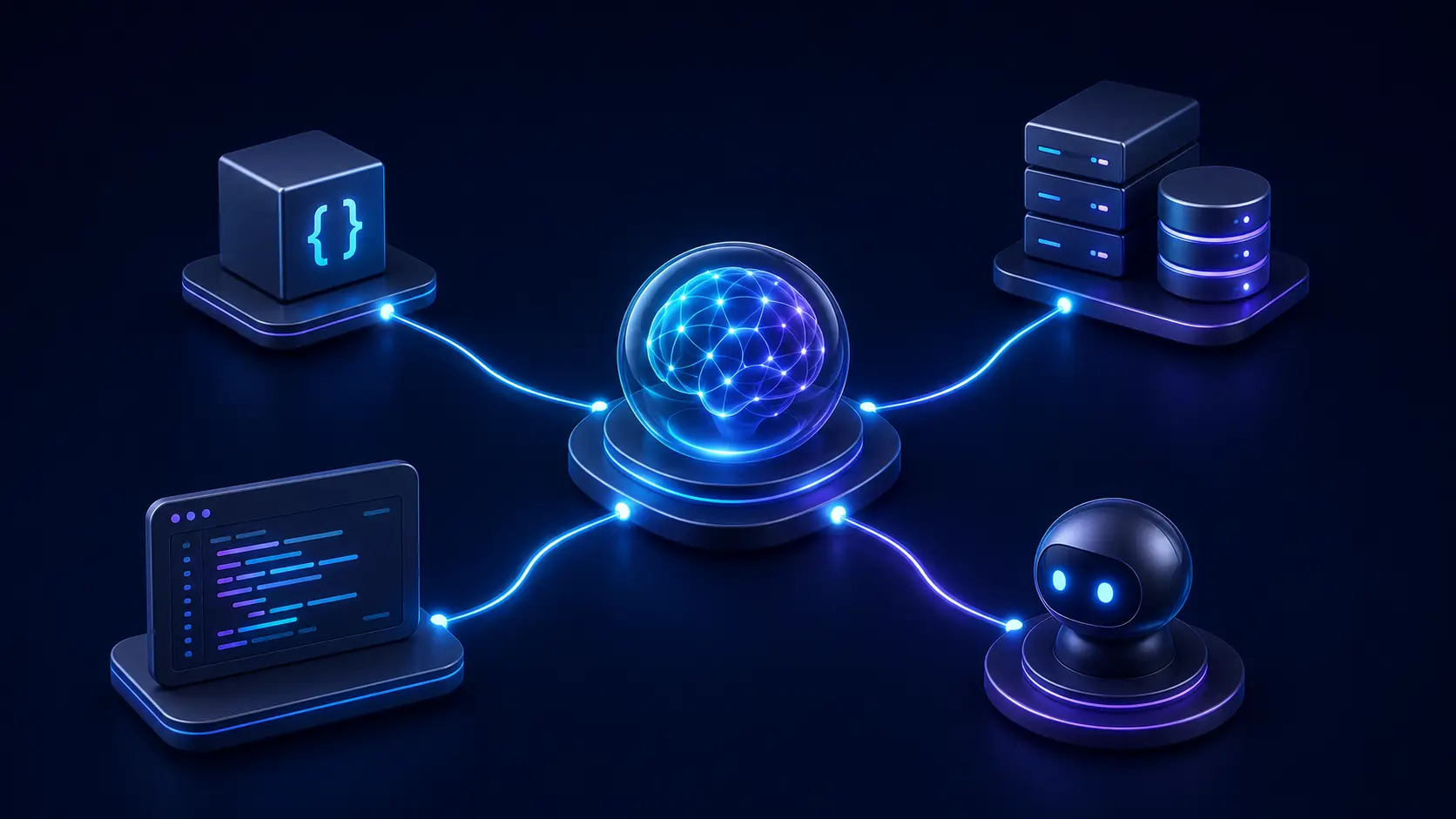
Here is a look at the three main pieces making that happen:
- The Gateway:
The Gateway acts as the control layer. It runs on your machine, receives messages from configured channels, handles authentication, and routes requests to the right agent or workflow. (It can be checked with your Web Dashboard or the terminal )
- The Agent:
The agent interprets the user command, decides what action is needed, and selects from the tools or skills available in your setup.
- The Tools:
Tools perform the actual actions, such as opening a browser, taking a screenshot, sending a message, reading a file, or interacting with a website.
The important part is control. OpenClaw should only be allowed to use the tools and permissions you explicitly configure, which is why setup decisions matter from the beginning. It is locked down, only allowing the use of the exact tools you approve.
So when you text, “Remind the team about the meeting,” OpenClaw reads it, selects your approved messaging tool, sends the message, and confirms it’s done.
Tools vs Skills in OpenClaw: What’s the Difference?
During setup, you’ll come across “Tools” and “Skills” quite often, and understanding the difference early saves a lot of confusion later.
- Tools are single-purpose actions. Taking a screenshot, sending an email, or opening a browser are all individual tools.
- Skills are built by combining multiple tools to complete a larger task. Instead of doing one action, they execute a sequence.
For example, a GitHub-related skill may combine multiple tools: one to access the repository, another to inspect changes, and another to create or update an issue. A simple way to understand it: tools are individual actions, while skills are workflows built by combining those actions.

Walk away with actionable insights on AI adoption.
Limited seats available!

OpenClaw Setup Checklist: Before You Start
Before downloading, make sure your system has everything required. It’s a short checklist, but skipping this can break the setup later.
1. OpenClaw depends on Node.js: The installer may handle this automatically, but checking your version before setup helps avoid installation issues.
2. Package Manager: You’ll need a package manager (pnpm, npm, or yarn) to install dependencies and manage tools.
3. Homebrew: The installer may prompt you to install Homebrew, so having it set up beforehand helps.
4. Operating System: Supports Mac, Linux, and Windows. On Windows, use WSL2 to avoid compatibility issues.
5. Internet Connection: Required to download setup files and future updates.
6. API Keys: OpenClaw requires a model provider (such as OpenAI, Anthropic, Gemini, or local models) to process your text. You’ll need an account and an API key to connect it.
How to Install OpenClaw
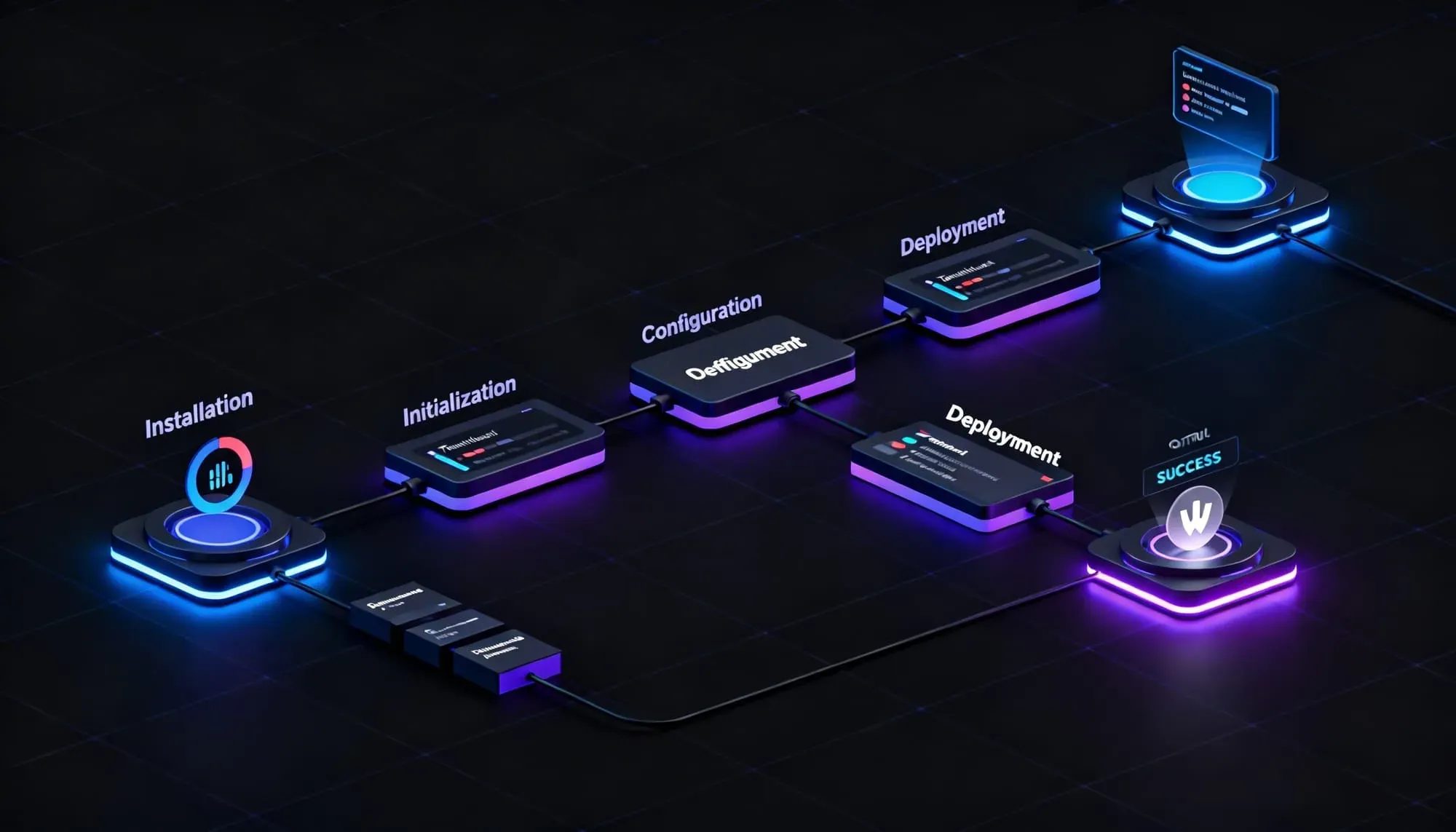
The fastest way to install OpenClaw is through the official installer. According to OpenClaw’s install documentation, the script detects your operating system, installs Node if needed, installs OpenClaw, and launches onboarding on macOS, Linux, or Windows through WSL2.
~curl -fsSL https://openclaw.ai/install.sh | bash- During installation, you may see a sandbox or permission warning. Read it carefully before continuing, because OpenClaw can perform actions through the tools you enable.
- You must manually select "Yes" to proceed past the Sandbox warning.
- Next, you select the "Model provider" (the AI brain), with options including OpenAI, Anthropic, Qwen, or local models.
- After the brain is connected, the script will ask some basic questions.
- One of these questions is which messaging app you want to use to control it.
Hitting Enter initiates the script, which downloads necessary files and then asks questions like the preferred messaging app.

If you prefer to skip the wizard and configure things manually later, just add --no-onboard to the end of that command.
Otherwise, follow the prompts. Once it finishes, a local dashboard will pop up in the browser showing that the new automation hub is live.
OpenClaw Tools: What to Enable First
When the dashboard opens, you will see a set of tools you can turn on. Avoid enabling every tool during the first setup. Too many active tools can make testing harder and increase the chance of unintended actions.
Try enabling them in this order:
- Communication Tools: Get WhatsApp or Telegram working first so you have a way to text the system.
- Browser Tools: Next, activate the web tools so OpenClaw can navigate websites or grab screenshots for you.
- Developer/Work Tools: Add GitHub if you write code, or Notion if you manage projects.
A practical rule is to enable only the tools you plan to test immediately. You can always add more tools once the first workflow is stable. Every active tool is another access point to the computer, so keeping that list short keeps you secure.
OpenClaw Skills: Which Ones Actually Matter
Skills can vary in quality because many are community-built or workflow-specific. Review the description, required permissions, and maintenance status before installing one.
- For Office Tasks: Look into the Slack, Trello, or Notion skills to automate the project management busywork.
- For developers: GitHub and CLI-related skills can help check repository status, inspect changes, or trigger project workflows from a chat command. You can check the status of a project right from your phone without opening your laptop.
- For Content Creators: Try the skills built for summarizing long PDFs or sorting files. You can also install powerful media dependencies right from the setup menu! Look out for openai-whisper to handle audio transcription, or visual tools like nano-banana-pro, video-frames, and camsnap to automate the media workflows.
- Treat skills like product features: install only what supports the workflow you are testing. This is especially important during MVP-stage validation, where the goal is to prove the automation works before expanding permissions or adding more tools.

Recommended OpenClaw Configuration
A great OpenClaw setup is minimal and clean. For teams connecting AI agents with internal tools, messaging apps, or workflow systems, AI integration should start with limited permissions and a clearly defined use case.
First, you'll pick your AI model (the "brain") and set up a workspace folder where OpenClaw can save its notes and logs securely on your hard drive.
Your communication channels require the most attention. Restrict command access to your own phone number, account, or a small allowlist of trusted users. Go into the settings and lock it down so OpenClaw only responds to your personal phone number or a specific list of approved accounts.
Keep the Gateway local unless you have a clear reason to expose it externally. If remote access is required, use proper authentication, network restrictions, and logging rather than opening it broadly to the internet. If remote access is required, use proper authentication, network restrictions, and logging rather than opening it broadly to the internet.
Why OpenClaw Security Needs Extra Care
OpenClaw is not just answering prompts; it can sit between your messages, tools, files, credentials, and workflows. That makes it closer to an always-on automation layer than a normal chatbot.
This is why permissions should be treated carefully. A small misconfiguration can have a bigger impact when the system has access to messaging apps, files, browser actions, or work tools.
OpenClaw Security Risks You Should Know
We have to be honest here: giving an AI the ability to click buttons and move files on your computer comes with risks.
- Unauthorized Access: If someone steals your phone or gets into your Telegram, they can send commands to your computer.
- Over-permissioned tools: If file management tools have broad delete or edit access, a vague command like “clean up my desktop” may produce unwanted changes. Start with read-only or low-risk tools where possible.
- Stolen Passwords: Model providers and third-party tools may require API keys. Treat these keys like credentials, store them securely, and avoid pasting them into public files, chat logs, or repositories. If those keys are stored carelessly, bad actors could steal them.
Walk away with actionable insights on AI adoption.
Limited seats available!
OpenClaw Security Checklist
Use this checklist before giving OpenClaw access to important tools or workflows:
- Lock down access: Only allow your personal phone number or account to send commands.
- Use the principle of least privilege: Only turn on the tools you absolutely need right now.
- Keep it updated: The developers are always fixing bugs. Run your updates regularly!
- Protect your API keys: Never post your API keys online, and use environment variables to store them secretly on your computer.
Best OpenClaw Automation Use Cases
OpenClaw works best for repeatable workflows where a short text command can trigger a clear action. OpenClaw is most useful when a text command needs to trigger a repeatable workflow, such as checking project status, summarizing documents, or updating internal tools.
For SaaS teams, these patterns often appear inside admin workflows, support operations, reporting, and internal copilots.
- The Quick Reminder: Send a command such as “remind the marketing team about the sales report,” and OpenClaw can use an approved messaging tool to send the update.
- The Web Researcher: Text it a link to a 40-page PDF and say, "Read this and text me back the top 3 bullet points."
- The Code Assistant: For developers, texting "Did my website update build successfully?" and getting an instant "Yes" is a massive time saver.
- The Daily Routine: You can set OpenClaw to wake up every morning at 8 AM, check the weather, read your emails, and text you a summary of what you need to care about today.
- Customer message triage: OpenClaw can help monitor incoming messages, summarize requests, draft responses, or route issues to the right person. For customer-facing replies, keep human approval enabled until the workflow is tested properly.
Frequently Asked Questions
1. What is OpenClaw?
OpenClaw is a local AI agent that executes real tasks from text commands. It connects to tools, runs workflows on your system, and operates strictly within the permissions and tools you enable.
2. Do I need coding knowledge to use OpenClaw?
Basic setup can be done through the guided installer, but some technical comfort helps. You should understand API keys, permissions, tools, skills, and basic terminal commands before giving OpenClaw access to important workflows.
3. Is OpenClaw safe to use on my computer?
OpenClaw can be safe when configured carefully, but it should not be treated like a normal chatbot. Limit tools, restrict who can send commands, protect API keys, and review high-risk actions before letting them run automatically.
4. How many tools should I enable initially?
Start with 2–3 tools. Enabling too many early creates confusion and increases the risk of unintended actions.
5. Can OpenClaw run completely offline?
The system runs locally, but most model providers require internet access unless you use a local model setup.
6. What usually goes wrong during setup?
Common setup issues include missing dependencies, invalid API keys, too many tools enabled at once, unclear permissions, and confusion between tools, skills, agents, and the Gateway.
Conclusion
OpenClaw isn’t complicated once you understand how it’s structured. The real challenge is not the setup itself, but how you choose to configure it.
Start small, enable only what you need, and treat every tool or skill as a decision, not a default. That’s what keeps the system useful instead of overwhelming.
Once the Gateway, model provider, communication channel, and first few tools are configured, OpenClaw becomes easier to understand. The key is to start with a small, controlled setup and expand only after each workflow behaves as expected.
Used carefully, OpenClaw can reduce repetitive work. Used carelessly, it can create unnecessary risk. The difference comes down to permissions, tool selection, and how clearly you define what the agent is allowed to do.

Walk away with actionable insights on AI adoption.
Limited seats available!