A well-designed cart reminder helps shoppers continue a purchase they already showed interest in. It keeps selected products visible, makes returning to the cart effortless, and follows up after a customer leaves without creating unnecessary pressure.
Shopify merchants can implement cart reminders in three places:
- Inside the storefront while a customer is browsing
- Through automated email or SMS after cart abandonment
- Through Shop email and push notifications after an abandoned Shop Pay checkout
Each method serves a different stage of the buying journey. This guide explains how they work, how to set them up, and how to implement a lightweight floating cart reminder without repeatedly polling Shopify or depending on a theme-specific cart drawer.
- Use an on-site cart reminder while the customer is still browsing.
- Use Shopify Messaging for abandoned browse, cart, and checkout automations.
- Enable Shop cart reminders for eligible abandoned Shop Pay checkouts.
- Distinguish an abandoned cart from an abandoned checkout before creating a workflow.
- Avoid requesting
/cart.js every few seconds because it adds unnecessary storefront activity.- Make exit reminders accessible, easy to dismiss, and truthful.
- Test reminders on mobile, desktop, multiple currencies, and accelerated checkout.
- Measure recovered revenue and checkout completion—not only reminder clicks.
What Is a Shopify Cart Reminder?
A Shopify cart reminder prompts a customer to return to products they previously added to their cart.
Depending on the implementation, the reminder may appear as:
- A floating cart button
- A cart count displayed in the header
- A cart drawer
- An exit-intent message
- An email
- An SMS
- A Shop push notification
The objective is to make continuing the purchase convenient. Effective reminders preserve the customer’s context and provide a direct route back to the cart or checkout.
Abandoned Browse vs Abandoned Cart vs Abandoned Checkout
These terms describe different customer behaviours and should not be used interchangeably.
Customer stage | What happened | Suitable reminder |
Abandoned browse | The customer viewed a product but did not add it to the cart | Product reminder email or SMS |
Abandoned cart | The customer added a product but did not begin checkout | Onsite reminder, cart email or SMS |
Abandoned checkout | The customer began checkout but did not complete the order | Checkout recovery email, SMS or Shop reminder |
Payment failure | The customer attempted to pay, but the transaction failed | Support or payment-focused recovery message |
This distinction matters because Shopify can recover only customers and carts it can identify.
An anonymous visitor who adds a product and closes the browser might not have provided an email address or phone number. Shopify can preserve the browser’s cart experience, but an email or SMS reminder requires identifiable contact information and the appropriate consent.
Which Cart Reminder Method Should You Use?
Most Shopify stores benefit from using more than one reminder layer.
Method | Best used when | Main limitation |
Header cart count | The customer is actively browsing | Easy to overlook |
Floating cart reminder | The customer has added an item and continues browsing | Requires theme implementation |
Cart drawer | The customer has just added an item | Behaviour differs between themes |
Exit-intent message | A desktop visitor appears ready to leave | Mobile devices have no reliable exit-intent signal |
Abandoned cart email | Shopify can identify an eligible customer who did not start checkout | Requires contact information and eligibility |
Abandoned checkout email | The customer entered checkout but did not purchase | Applies only after checkout begins |
SMS reminder | The customer has provided a valid number and appropriate consent | More intrusive and potentially costly |
Shop notification | An eligible Shop customer abandons a Shop Pay checkout | Controlled by Shop and cannot be fully customized |
A sensible implementation begins with Shopify’s native automation features. Custom onsite code should be added only when it improves the active browsing experience.
Method 1: Set Up Native Cart Reminders in Shopify Messaging
Shopify Messaging includes separate automations for abandoned product browsing, abandoned carts, and abandoned checkouts.
According to Shopify’s current automation documentation, the available recovery templates include:
- Convert abandoned product browse: For customers who viewed a product but did not add it or purchase
- Recover abandoned cart: For customers who added products but did not start checkout
- Recover abandoned checkout: For customers who started checkout but did not complete an order
How to Create an Abandoned Cart Automation
- Log in to your Shopify admin.
- Go to Apps > Messaging.
- Select Automations.
- Click Create automation.
- Choose Recover abandoned cart.
- Select email or SMS when the available options suit your store.
- Review the trigger, waiting period, conditions, and message.
- Customize the subject line, preview text, content, branding, and return-to-cart button.
- Turn on the automation.
- Complete a test journey before sending it to customers.
The exact options available can depend on the automation, messaging channel, store configuration, and customer eligibility.
How to Create an Abandoned Checkout Automation
- From Shopify admin, go to Apps > Messaging.
- Open Automations.
- Select View templates.
- Choose the Abandoned checkout automation.
- Edit the message or workflow when required.
- Review the recipients and delay.
- Turn on the automation.
Shopify states that switching from its legacy abandoned-checkout emails to the newer automation is permanent. Review the existing settings and email content before completing that transition.
The automation contains a recovery link that lets the customer return to their abandoned checkout.
Customize the Workflow With Shopify Flow
Shopify Flow can be used to modify the workflow behind a recovery automation, including its waiting period and conditions.
Useful conditions may include:
- Cart or checkout value
- Customer segment
- Product or collection
- First-time versus returning customer
- Geographic market
- Whether the order was completed during the waiting period
- Whether the selected products are still available
Avoid sending the same generic message to every customer. A shopper considering a high-value item may need product support, whereas a repeat customer may simply need a convenient link back to checkout.
A Practical Reminder Sequence
There is no universal timing sequence, but the following can serve as a starting point for testing:
First reminder: approximately 1–4 hours after abandonment
Purpose: Help customers resume their purchase while their interest is still recent.
Include:
- A clear reminder
- Selected product details
- A direct cart or checkout link
- Delivery or return information
- Access to customer support
Second reminder: approximately 20–24 hours later
Purpose: Resolve uncertainty that might have prevented the purchase.
Include:
- Product benefits
- Sizing, compatibility, or usage information
- Frequently asked questions
- Genuine customer reviews
- A direct recovery link
Need Help With Shopify Development?
We build fast, custom Shopify stores designed to drive more sales.
Optional final reminder: approximately 48–72 hours later
Purpose: Provide a final helpful prompt without creating an endless sequence.
Consider an incentive only when margin, customer value, and purchase behaviour justify it. Do not imply that an offer is expiring unless it genuinely is.
These timings should be tested against your store’s buying cycle. A low-cost accessory and a high-value furniture purchase will not require the same decision time.
What Should a Cart Reminder Message Say?
An effective reminder should help the customer continue rather than make them feel monitored.
Example subject lines
- Your cart is ready when you are
- You left something in your cart
- Still considering these items?
- Return to your saved selection
- Need help completing your order?
Example reminder copy
Your selected items are still waiting
Return to your cart to review your products and continue checkout. If you have questions about sizing, delivery, or returns, our team is available to help.
CTA: Return to my cart
Keep the email focused on one main action. Secondary information should support the decision rather than compete with the return-to-cart button.
Method 2: Enable Cart Reminders in the Shop Channel
Shop can send email and push reminders to eligible customers who abandon Shop Pay checkouts on your online store.
These reminders are separate from the abandoned checkout automations configured through Shopify Messaging.
How to Enable Shop Cart Reminders
- From Shopify admin, go to Sales channels > Shop.
- Open Settings.
- Find the Cart reminder section.
- Click Enable.
- Choose the period after which Shop should send the notification.
Shop controls these notifications, and their content cannot be customized inside Shopify admin.
Before enabling Shop reminders alongside another checkout-recovery automation, map the complete customer journey. Eligible customers should not receive several near-identical reminders in a short period.
Method 3: Add an Onsite Floating Cart Reminder
A floating cart reminder remains visible after a shopper adds an item and continues browsing.
Unlike an email automation, it does not require the customer’s contact information. It works during the current storefront experience and provides a direct route back to the cart.
A useful floating reminder can display:
- The first product image
- The current cart quantity
- An accessible “View cart” label
- A link to the Shopify cart page
The implementation below links to the cart page instead of forcing a particular cart drawer. This makes it more portable across Shopify themes.
Before Editing Your Theme
Duplicate the live theme before adding custom code:
- Go to Online Store > Themes.
- Find the current theme.
- Open the theme actions menu.
- Select Duplicate.
- Make and test the changes in the duplicate theme.
Theme structures differ. Test the implementation in a preview theme before publishing it.
Step 1: Create the Cart Reminder Section
In Shopify admin:
- Go to Online Store > Themes.
- Open the theme actions menu.
- Select Edit code.
- Under Sections, click Add a new section.
- Name it
cart-reminder. - Replace the generated content with the following code:
{% liquid
  assign reminder_item = cart.items.first
  assign reminder_label = 'View cart, ' | append: cart.item_count | append: ' items'
%}

<a
  class="cart-reminder{% if cart.item_count > 0 %} cart-reminder--visible{% endif %}"
  href="{{ routes.cart_url }}"
  data-cart-reminder
  aria-label="{{ reminder_label }}"
  {% if cart.item_count == 0 %}hidden{% endif %}
>
  <span class="cart-reminder__image" data-cart-reminder-image>
    {% if reminder_item.image %}
      {{
        reminder_item.image
        | image_url: width: 120
        | image_tag:
          loading: 'lazy',
          widths: '60, 90, 120',
          sizes: '60px',
          alt: ''
      }}
    {% endif %}
  </span>

  <span
    class="cart-reminder__count"
    data-cart-reminder-count
    aria-hidden="true"
  >
    {{ cart.item_count }}
  </span>

  <span class="cart-reminder__text">
    {{ section.settings.label }}
  </span>
</a>

<style>
  .cart-reminder {
    position: fixed;
    right: {{ section.settings.horizontal_offset }}px;
    bottom: {{ section.settings.vertical_offset }}px;
    z-index: 30;
    display: none;
    align-items: center;
    gap: 10px;
    min-height: 56px;
    max-width: min(280px, calc(100vw - 32px));
    padding: 8px 14px 8px 8px;
    color: {{ section.settings.text_color }};
    background: {{ section.settings.background_color }};
    border-radius: 999px;
    box-shadow: 0 6px 24px rgba(0, 0, 0, 0.18);
    text-decoration: none;
  }

  .cart-reminder--visible {
    display: flex;
  }

  .cart-reminder__image {
    display: flex;
    width: 44px;
    height: 44px;
    flex: 0 0 44px;
    overflow: hidden;
    border-radius: 50%;
    background: rgba(255, 255, 255, 0.12);
  }

  .cart-reminder__image img {
    width: 100%;
    height: 100%;
    object-fit: cover;
  }

  .cart-reminder__count {
    position: absolute;
    top: -5px;
    right: -3px;
    display: grid;
    min-width: 24px;
    height: 24px;
    padding: 0 6px;
    place-items: center;
    color: {{ section.settings.badge_text_color }};
    background: {{ section.settings.badge_color }};
    border-radius: 999px;
    font-size: 12px;
    font-weight: 700;
    line-height: 1;
  }

  .cart-reminder__text {
    overflow: hidden;
    font-size: 14px;
    font-weight: 600;
    text-overflow: ellipsis;
    white-space: nowrap;
  }

  .cart-reminder:focus-visible {
    outline: 3px solid currentColor;
    outline-offset: 3px;
  }

  @media screen and (max-width: 749px) {
    .cart-reminder {
      right: 16px;
      bottom: 16px;
    }
  }

  @media (prefers-reduced-motion: no-preference) {
    .cart-reminder--visible {
      animation: cart-reminder-enter 180ms ease-out;
    }

    @keyframes cart-reminder-enter {
      from {
        opacity: 0;
        transform: translateY(8px);
      }

      to {
        opacity: 1;
        transform: translateY(0);
      }
    }
  }
</style>

<script>
  (() => {
    const reminder = document.querySelector('[data-cart-reminder]');

    if (!reminder || reminder.dataset.initialized === 'true') {
      return;
    }

    reminder.dataset.initialized = 'true';

    const count = reminder.querySelector('[data-cart-reminder-count]');
    const imageContainer = reminder.querySelector(
      '[data-cart-reminder-image]'
    );

    const cartUrl = `${window.Shopify.routes.root}cart.js`;

    async function refreshCartReminder() {
      try {
        const response = await fetch(cartUrl, {
          method: 'GET',
          headers: {
            Accept: 'application/json'
          },
          credentials: 'same-origin'
        });

        if (!response.ok) {
          return;
        }

        const cart = await response.json();
        const hasItems = cart.item_count > 0;

        reminder.hidden = !hasItems;
        reminder.classList.toggle('cart-reminder--visible', hasItems);

        count.textContent = cart.item_count;
        reminder.setAttribute(
          'aria-label',
          `View cart, ${cart.item_count} ${
            cart.item_count === 1 ? 'item' : 'items'
          }`
        );

        const firstItem = cart.items && cart.items[0];
        const imageUrl =
          firstItem &&
          firstItem.featured_image &&
          firstItem.featured_image.url;

        if (imageUrl) {
          let image = imageContainer.querySelector('img');

          if (!image) {
            image = document.createElement('img');
            image.alt = '';
            image.loading = 'lazy';
            imageContainer.appendChild(image);
          }

          if (image.src !== imageUrl) {
            image.src = imageUrl;
          }
        } else {
          imageContainer.replaceChildren();
        }
      } catch (error) {
        console.warn('Cart reminder could not be updated.', error);
      }
    }

    document.addEventListener(
      'submit',
      (event) => {
        const form = event.target.closest(
          'form[action*="/cart/add"]'
        );

        if (!form) {
          return;
        }

        /*
         * The first refresh suits many AJAX themes.
         * The second accommodates themes with a slower cart update.
         */
        window.setTimeout(refreshCartReminder, 700);
        window.setTimeout(refreshCartReminder, 1600);
      },
      true
    );

    document.addEventListener('cart:updated', refreshCartReminder);

    document.addEventListener('visibilitychange', () => {
      if (document.visibilityState === 'visible') {
        refreshCartReminder();
      }
    });

    window.addEventListener('pageshow', refreshCartReminder);
  })();
</script>

{% schema %}
{
  "name": "Cart reminder",
  "settings": [
    {
      "type": "text",
      "id": "label",
      "label": "Button label",
      "default": "View your cart"
    },
    {
      "type": "color",
      "id": "background_color",
      "label": "Background",
      "default": "#111111"
    },
    {
      "type": "color",
      "id": "text_color",
      "label": "Text",
      "default": "#ffffff"
    },
    {
      "type": "color",
      "id": "badge_color",
      "label": "Count badge",
      "default": "#ffffff"
    },
    {
      "type": "color",
      "id": "badge_text_color",
      "label": "Count badge text",
      "default": "#111111"
    },
    {
      "type": "range",
      "id": "horizontal_offset",
      "label": "Desktop horizontal offset",
      "min": 12,
      "max": 80,
      "step": 4,
      "unit": "px",
      "default": 24
    },
    {
      "type": "range",
      "id": "vertical_offset",
      "label": "Desktop vertical offset",
      "min": 12,
      "max": 120,
      "step": 4,
      "unit": "px",
      "default": 32
    }
  ],
  "presets": [
    {
      "name": "Cart reminder"
    }
  ]
}
{% endschema %}
This code uses Shopify’s locale-aware Ajax Cart API URL:
window.Shopify.routes.root + 'cart.js'That is preferable to hard-coding /cart.js, particularly for stores using multiple languages or markets.
Step 2: Include the Section in the Theme Layout
Open layout/theme.liquid and add the section immediately before the closing </body> tag:
{% section 'cart-reminder' %}Save the file and preview the duplicate theme.
Step 3: Test the Reminder
Complete the following tests:
- Open the preview in a private browser window.
- Add a product to the cart.
- Confirm that the reminder appears.
- Verify that the product image and quantity are correct.
- Add a second item and confirm the count updates.
- Change the cart quantity and revisit another page.
- Remove every product and confirm that the reminder disappears.
- Change the active language or market.
- Test on mobile and desktop.
- Navigate with a keyboard and verify the focus indicator.
- Confirm that the reminder does not cover chat, consent, or accessibility controls.
Why This Implementation Avoids Constant Polling
Some custom implementations request Shopify’s Cart API every three seconds, even when the cart has not changed.
That approach is unnecessary for a simple reminder. It creates repeated browser activity and can complicate debugging and performance analysis.
The implementation above refreshes when:
- A product form is submitted
- The shopper returns to the tab
- The page is restored from browser history
- Another theme component dispatches a
cart:updatedevent
Themes use different approaches for AJAX cart updates. If your theme exposes its own cart event, connect that event to refreshCartReminder() for immediate synchronization.
Opening a Cart Drawer Instead of the Cart Page
The portable version links to {{ routes.cart_url }} because that behaviour works across themes.
Cart drawer implementations are theme-specific. One theme may use:
<cart-drawer>Another may use a dialog, custom JavaScript controller, app block, or different web component.
Do not assume that adding an active class to <cart-drawer> will work universally. Inspect the theme’s existing header-cart behaviour and call the same supported function or event.
If no stable drawer interface is available, linking to the cart page is the safer option.
Method 4: Add an Exit Reminder Carefully
An exit reminder appears when a customer with cart items shows signs of leaving.
On desktop, the usual signal is the pointer moving above the page viewport. Mobile browsers do not provide an equivalent reliable exit-intent event. Mobile alternatives include:
- An inactivity reminder
- A reminder after the customer returns to the tab
- A persistent cart button
- An email or SMS automation after identification and consent
Exit Reminder Rules
A responsible exit reminder should:
- Appear only when the cart contains products
- Display no more than once per session
- Be easy to dismiss
- Close when the customer presses Escape
- Keep keyboard focus inside the dialog while open
- Return focus to the previous element after closing
- Use
role="dialog"andaria-modal="true" - Avoid misleading urgency
- Avoid inventing a discount that is not configured
- Avoid opening during checkout
- Stop appearing after the order is completed
Use a message such as:
Your cart is ready
Review your selected items or continue browsing. Your cart will remain available when you are ready to return.
Buttons:
- View cart
- Continue shopping
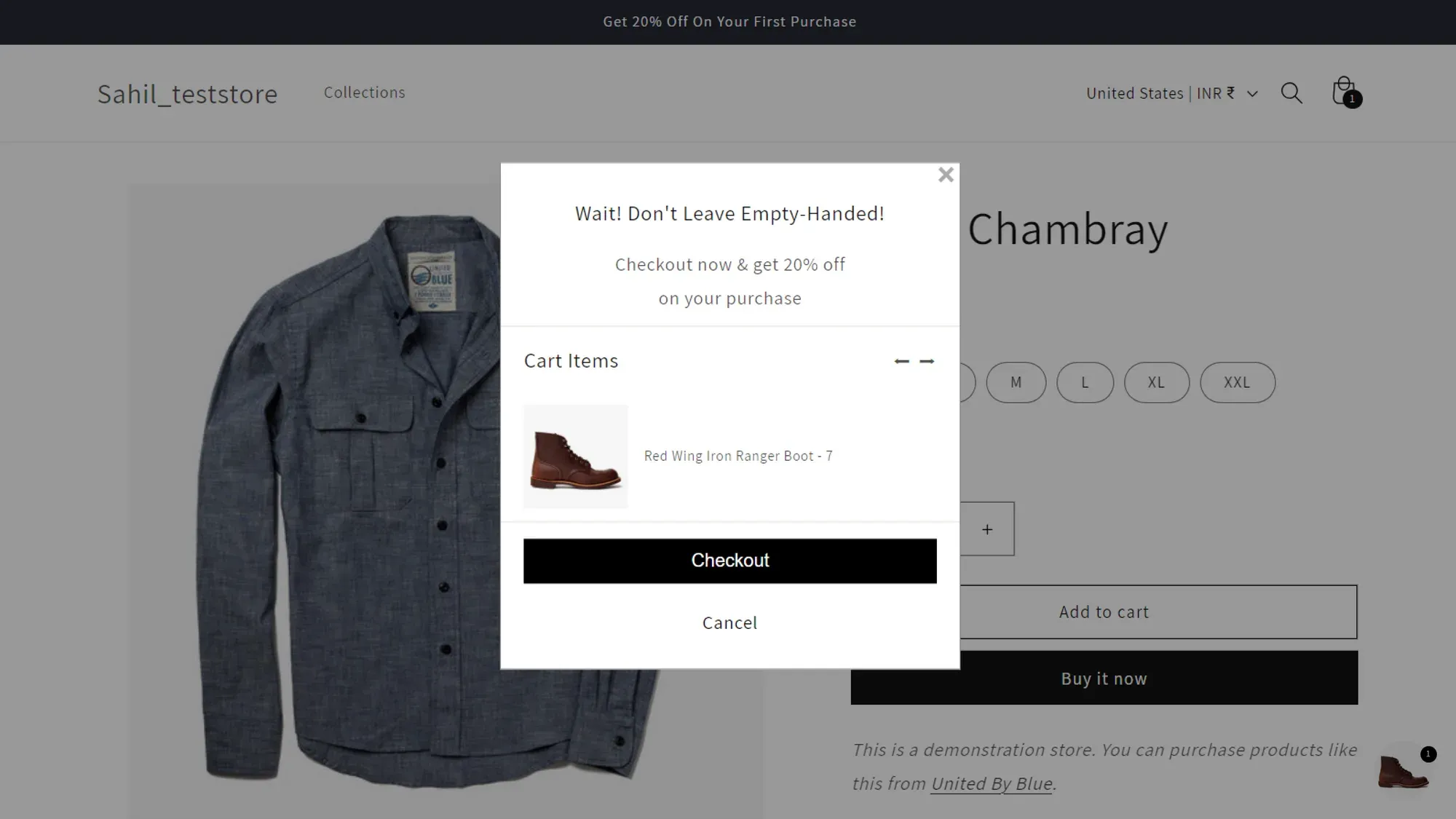
This is more helpful than an aggressive message such as “Wait! Don’t leave empty-handed,” particularly when the customer may simply be moving between tabs.
Should You Offer a Discount?
A discount can recover price-sensitive customers, but it should not be the default response to every abandonment.
Before offering one, consider:
- Gross margin
- Average order value
- Customer acquisition cost
- Repeat purchase behaviour
- Existing promotions
- Customer segment
- Reason for abandonment
- Discount abuse risk
Test a helpful reminder before adding an incentive. If shipping cost is the real problem, a percentage discount may recover the order while leaving the underlying friction unresolved.
Email and SMS Consent Requirements
Cart reminders involving email, SMS, cookies, or customer profiling can be subject to privacy and marketing regulations.
Shopify advises merchants to send promotional content only to customers who have agreed to receive marketing. The requirements can vary by customer location and communication channel.
Before enabling reminders:
- Configure email and SMS marketing consent in Shopify.
- Explain what customers are agreeing to receive.
- Honour unsubscribe requests.
- Review whether double opt-in is required.
- Avoid uploading contacts without a valid permission basis.
- Ensure third-party reminder apps follow your privacy requirements.
- Update the privacy policy when your data practices change.
- Obtain legal advice for the markets where you operate.
Consent requirements are not identical worldwide. Shopify’s automated regional settings can assist with configuration, but Shopify states that these settings are not a substitute for legal advice.
How to Measure Cart Reminder Performance
A reminder should be judged by the additional completed purchases it produces, not merely by how often customers click it.
Track the following metrics:
Metric | What it reveals |
Cart reminder impressions | How many eligible visitors saw the reminder |
Reminder click-through rate | Whether customers engaged with it |
Cart-to-checkout rate | Whether cart users proceeded to checkout |
Checkout completion rate | Whether checkout users completed payment |
Recovered orders | Orders completed after a reminder |
Recovered revenue | Revenue associated with recovered orders |
Unsubscribe rate | Whether email frequency is excessive |
SMS opt-out rate | Whether SMS reminders feel intrusive |
Discount usage | Whether incentives influence recovery |
Gross margin after discounts | Whether recovered orders remain profitable |
Reminder dismissals | Whether onsite prompts are being rejected |
Mobile versus desktop recovery | Whether performance differs by device |
Avoid Misleading Attribution
A customer who receives a reminder may return independently without clicking it. Shopify can still classify an abandoned checkout as recovered after the customer completes the order.
Need Help With Shopify Development?
We build fast, custom Shopify stores designed to drive more sales.
For a more reliable evaluation:
- Record your existing cart-to-purchase performance.
- Test the reminder with an eligible audience.
- Compare equivalent periods and customer segments.
- Separate email, SMS, Shop, and onsite reminder results.
- Account for promotions and seasonal demand.
- Monitor profitability alongside recovered revenue.
Where traffic permits, use a holdout group that receives no reminder. The difference between the groups provides a better estimate of incremental recovery.
Common Cart Reminder Mistakes
1. Treating Every Abandonment the Same
A customer who viewed a product, one who added it to the cart, and one whose payment failed need different messages.
2. Sending Too Many Reminders
Onsite widgets, pop-ups, email, SMS, and Shop notifications can overlap. Map the complete sequence so customers do not receive several reminders at once.
3. Offering an Unconfigured Discount
Do not advertise “20% off” unless the discount exists, applies to the displayed products, and has clear terms.
4. Using Fake Scarcity
Only mention low stock, reserved inventory, or expiring offers when those statements are accurate.
5. Polling the Cart Repeatedly
Fetching /cart.js every few seconds is unnecessary for most reminder widgets. Refresh after relevant cart events or page-state changes instead.
5. Assuming All Themes Use the Same Cart Drawer
Theme markup and JavaScript are not standardized. A reliable implementation should either integrate with the active theme or link to Shopify’s cart page.
7. Ignoring Accessibility
A reminder that covers content, traps users incorrectly, lacks a close button, or cannot be operated with a keyboard can create more friction than it removes.
8. Forgetting Mobile Behaviour
Desktop mouse-exit detection does not translate directly to touchscreens. Use persistent cart access, inactivity rules, or post-visit automation for mobile shoppers.
9. Measuring Only Revenue
Revenue can increase while profit declines because of discounts, messaging costs, returns, or customers learning to wait for an offer.
Cart Reminder Testing Checklist
Before publishing, confirm that:
- The reminder appears only when the cart contains products.
- Product images and quantities update correctly.
- The cart link respects the active language and market.
- Prices use the correct presentment currency where displayed.
- Sold-out or unavailable products are handled appropriately.
- The reminder works for guest and returning customers.
- Email and SMS workflows stop after purchase.
- Mobile layouts remain usable.
- Keyboard users can operate and dismiss every interactive element.
- Screen readers receive a useful cart label.
- Reduced-motion preferences are respected.
- Reminder elements do not overlap consent or chat widgets.
- Discount codes work with the intended products and markets.
- Analytics do not record duplicate events.
- Test orders do not trigger live customer campaigns.
Frequently Asked Questions
Does Shopify have a built-in abandoned cart reminder?
Yes. Shopify Messaging includes automations for abandoned product browsing, abandoned carts, and abandoned checkouts. Available channels, eligibility, consent requirements, and message costs can differ depending on the automation and store configuration.
What is the difference between an abandoned cart and an abandoned checkout?
An abandoned cart occurs when a customer adds products but does not begin checkout. An abandoned checkout occurs after the customer starts checkout but leaves before completing the purchase or payment process.
How long should I wait before sending a cart reminder?
There is no universal delay. Begin by testing the first reminder within several hours, then adjust according to product value, customer buying cycle, message engagement, checkout completion, unsubscribes, and recovered profitability.
Can Shopify email an anonymous visitor about an abandoned cart?
Not unless Shopify or an integrated service can associate the cart with valid customer contact information. Email and SMS reminders also depend on customer eligibility, consent settings, applicable laws, and automation conditions.
Do exit-intent cart reminders work on mobile?
Not in the same way as desktop reminders because touchscreens lack a dependable mouse-exit signal. Mobile stores can use visible cart access, inactivity-based prompts, return-to-tab reminders, email, SMS, or Shop notifications.
Should a cart reminder include a discount?
Not automatically. Start with a helpful reminder and direct recovery link. Introduce discounts only when customer behaviour, margins, acquisition costs, and controlled testing show that an incentive creates profitable incremental purchases.
Can I open my theme’s cart drawer from the floating reminder?
Yes, but the implementation depends on the theme. Cart drawers use different elements, events, and JavaScript controllers, so inspect the active theme rather than assuming a universal <cart-drawer> interface.
How can I tell whether cart reminders are working?
Measure cart-to-checkout rate, checkout completion, recovered orders, recovered revenue, margin, unsubscribes, and opt-outs. Where sufficient traffic exists, compare recipients with a holdout group that receives no reminder.
Conclusion
A successful Shopify cart reminder system supports customers at the right moment without overwhelming them.
Begin with Shopify Messaging for abandoned browse, cart, and checkout recovery. Enable Shop reminders when they fit your Shop Pay customer journey, then add an onsite reminder when shoppers need a clearer way to return to their carts.
The floating implementation in this guide provides a lightweight foundation without depending on one theme’s cart drawer or requesting the Cart API every few seconds. From there, test timing, placement, messaging, and incentives against completed purchases and profitability.
Stores requiring theme-specific cart-drawer integration, customer segmentation, or advanced recovery workflows may benefit from working with experienced Shopify experts who can implement and test the feature without compromising performance or usability.

Sahil Singh
I’m a Front-End developer with 1.3 years of experience creating user-friendly, optimized web pages. I specialize in developing features that boost conversion rates for e-commerce websites.