I’ve noticed something with most AI tools. They’re great at responding, but they stop there. OpenClaw is different; it actually executes tasks on your computer using plain text commands.
That shift sounds simple, but it changes everything. Setup isn’t just about installing a tool; it’s about deciding what the system is allowed to do, which tools it can access, and how much control you’re giving it.
This is where most people get stuck. Too many tools enabled, unclear workflows, or security risks that they don’t fully understand.
With over 80% of developers already using AI in their workflow, tools like OpenClaw are moving from experimentation to real usage.
In this guide, I’ll break down how OpenClaw actually works, how to set it up cleanly, and what to avoid so it doesn’t become messy or risky over time.
What is OpenClaw?
OpenClaw is a local AI agent that turns simple text instructions into real actions on your computer. Instead of just responding like a chatbot, it connects to tools and executes tasks directly.
For example, if you text “send the daily report to Slack,” it doesn’t guide you through steps, it picks the right tool and completes the task.
It runs on your machine and only uses the tools you enable, which means every action is controlled and limited by your setup. This is what makes it useful, but also why setup and permissions actually matter.
How OpenClaw Actually Works?
Before setting it up, one thing confused me initially. The project is called OpenClaw, but the terminal agent shows up as “Clawdbot”. It’s the same system, just different naming inside the setup.

Most AI tools stop at responses.
OpenClaw is different because it actually takes action on your computer. It is a local program that reads your normal text messages and turns them into real tasks. Instead of giving you a tutorial on how to update a spreadsheet, it just goes and updates the spreadsheet.
Here is a look at the three main pieces making that happen:
- The Gateway:
Consider this the Backend of the operation. Running quietly on your laptop, it waits for a text from you, maybe via WhatsApp or other channels and decides where that request needs to go.(It can be checked with your Web Dashboard or the terminal )
- The Agent:
This is the logic centre. The agent reads the text, finds what you actually want, and picks the right tool for the right job.
- The Tools:
These are the workers. The tools handle the actual process, like launching a browser window, posting messages or clicking a button on the website.
And the best part is that you are totally in control. The system cannot just go rogue and start clicking around your hard drive. It is locked down, only allowed to use the exact tools you approve.
So when you text, “Remind the team about the meeting,” OpenClaw reads it, selects your approved messaging tool, sends the message, and confirms it’s done.
Tools vs Skills in OpenClaw: What’s the Difference?
During setup, you’ll come across “Tools” and “Skills” quite often, and understanding the difference early saves a lot of confusion later.
- Tools are single-purpose actions. Taking a screenshot, sending an email, or opening a browser are all individual tools.
- Skills are built by combining multiple tools to complete a larger task. Instead of doing one action, they execute a sequence.

Walk away with actionable insights on AI adoption.
Limited seats available!

Imagine you want OpenClaw to handle your code. GitHub Skill might rely on these three separate tools: one to log in, a second to scan the code, and a third to log some bug report. Basically, tools are our raw ingredients, while skills are the recipe.
OpenClaw Setup Checklist: Before You Start
Before downloading, make sure your system has everything required. It’s a short checklist, but skipping this can break the setup later.
1. Node.js (Version 22+)The runtime OpenClaw depends on. The installer usually handles this if it’s missing.
2. Package ManagerYou’ll need a package manager (pnpm, npm, or yarn) to install dependencies and manage tools.
3. HomebrewThe installer may prompt you to install Homebrew, so having it set up beforehand helps.
4. Operating SystemSupports Mac, Linux, and Windows. On Windows, use WSL2 to avoid compatibility issues.
5. Internet ConnectionRequired to download setup files and future updates.
6. API KeysOpenClaw requires a model provider (such as OpenAI, Anthropic, Gemini, or local models) to process your text. You’ll need an account and API key to connect it.
How to Install OpenClaw
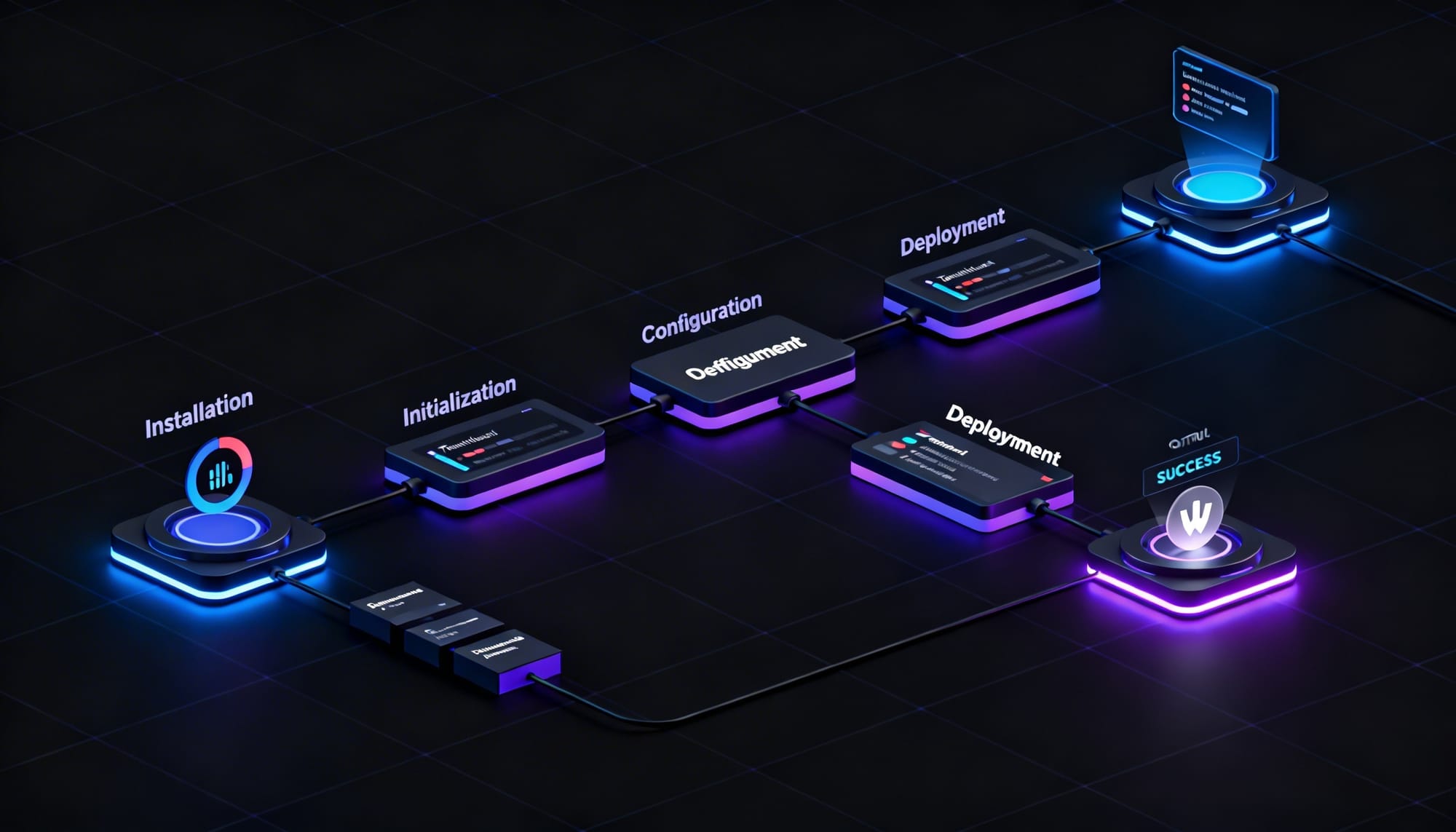
The fastest way to get started is using the official installer script. It handles package installation and walks you through a guided setup.
On Mac, Linux, or Windows (via WSL2), open your terminal and run:
~curl -fsSL https://openclaw.ai/install.sh | bash- The script immediately presents a serious Sandbox warning: "I understand this is powerful and inherently risky."
- You must manually select "Yes" to proceed past the Sandbox warning.
- Next, you select the "Model provider" (the AI brain), with options including OpenAI, Anthropic, Qwen, or local models.
- After the brain is connected, the script will ask some basic questions.
- One of these questions is which messaging app you want to use to control it.
Hitting enter initiates the script, which downloads necessary files and then asks questions like the preferred messaging app.

If you prefer to skip the wizard and configure things manually later, just add --no-onboard to the end of that command. Otherwise, follow the prompts. Once it finishes, a local dashboard will pop up in the browser showing that the new automation hub is live.
OpenClaw Tools: What to Enable First
When the dashboard opens, you will see a set of tools you can turn on. Resist the urge to enable everything at once. A massive list of tools will just confuse the system (and you).
Try enabling them in this order:
- Communication Tools: Get WhatsApp or Telegram working first so you have a way to text the system.
- Browser Tools: Next, activate the web tools so OpenClaw can navigate websites or grab screenshots for you.
- Developer/Work Tools: Add GitHub if you write code, or Notion if you manage projects.
A good rule of thumb is to only turn on a tool if you plan to use it today. Every active tool is another access point to the computer, so keeping that list short keeps you secure.
OpenClaw Skills: Which Ones Actually Matter
Because skills are just workflows created by other people, their quality varies. Some are lifesavers, while others are buggy and experimental.
- For Office Tasks: Look into the Slack, Trello, or Notion skills to automate the project management busywork.
- For Coders: The GitHub integrations are brilliant. You can check the status of a project right from your phone without opening your laptop.
- For Content Creators: Try the skills built for summarizing long PDFs or sorting files. You can also install powerful media dependencies right from the setup menu! Look out for openai-whisper to handle audio transcription, or visual tools like nano-banana-pro, video-frames, and camsnap to automate the media workflows.
Treat these like apps on your phone. Read the description, and if it doesn't clearly solve a problem you currently have, skip it.

Recommended OpenClaw Configuration
A great OpenClaw setup is minimal and clean.
First, you'll pick your AI model (the "brain") and set up a workspace folder where OpenClaw can save its notes and logs securely on your hard drive.
Your communication channels require the most attention. You definitely don't want strangers texting your computer. Go into the settings and lock it down so OpenClaw only responds to your personal phone number or a specific list of approved accounts.
Keep your gateway running locally. There is almost no reason to expose it to the open internet, and keeping it restricted to your own Wi-Fi network blocks outside threats.
OpenClaw Security Risks You Should Know
We have to be honest here: giving an AI the ability to click buttons and move files on your computer comes with risks.
- Unauthorized Access: If someone steals your phone or gets into your Telegram, they can send commands to your computer.
- Over-powered Tools: If you give OpenClaw permission to delete files, and then ask it to "clean up my desktop," it might delete things you actually wanted to keep.
- Stolen Passwords: To use OpenClaw, you have to give it API keys (which are essentially passwords to your online accounts). If those keys are stored carelessly, bad actors could steal them.
Walk away with actionable insights on AI adoption.
Limited seats available!
OpenClaw Security Checklist
Want to sleep soundly knowing your setup is secure? Just follow this quick checklist:
- Lock down access: Only allow your personal phone number or account to send commands.
- Use the principle of least privilege: Only turn on the tools you absolutely need right now.
- Keep it updated: The developers are always fixing bugs. Run your updates regularly!
- Hide your keys: Never post your API keys online, and use environment variables to store them secretly on your computer.
Best OpenClaw Automation Use Cases
So, what can you actually do with this thing? OpenClaw shines when you need to connect a quick text message to a boring computer chore.
- The Quick Reminder: Text OpenClaw from your car, "Send the daily sales report to the marketing Slack channel," and it handles the rest.
- The Web Researcher: Text it a link to a 40-page PDF and say, "Read this and text me back the top 3 bullet points."
- The Code Assistant: For developers, texting "Did my website update build successfully?" and getting an instant "Yes" is a massive time saver.
- The Daily Routine: You can set OpenClaw to wake up every morning at 8 AM, check the weather, read your emails, and text you a summary of what you need to care about today.
- Customer Handling 24/7: You can add the channel with the agent (WhatsApp, Telegram, Slack, etc) and make responses to the client.
Frequently Asked Questions
1. What is OpenClaw?
OpenClaw is a local AI agent that executes real tasks from text commands. It connects to tools, runs workflows on your system, and operates strictly within the permissions and tools you enable.
2. Do I need coding knowledge to use OpenClaw?
Basic setup doesn’t require coding, but understanding tools, permissions, and workflows helps you avoid misconfigurations and get better results.
3. Is OpenClaw safe to use on my computer?
It can be, but only if configured properly. Since it can perform real actions, limiting tool access and securing your communication channels is critical.
4. How many tools should I enable initially?
Start with 2–3 tools. Enabling too many early creates confusion and increases the risk of unintended actions.
5. Can OpenClaw run completely offline?
The system runs locally, but most model providers require internet access unless you use a local model setup.
6. What usually goes wrong during setup?
Most issues come from enabling too many tools, misconfigured permissions, or not understanding how tools and skills interact.
Conclusion
OpenClaw isn’t complicated once you understand how it’s structured. The real challenge is not the setup itself, but how you choose to configure it.
Start small, enable only what you need, and treat every tool or skill as a decision, not a default. That’s what keeps the system useful instead of overwhelming.
Now that you’ve seen how OpenClaw works and how to set it up properly, the difference becomes clear. It’s not just another AI tool; it’s a system that can actually take work off your plate when configured right.

Arockiya ossia
AI/ML Intern passionate about building practical, data-driven systems. Focused on applying machine learning techniques to solve complex problems and develop scalable AI solutions.
Walk away with actionable insights on AI adoption.
Limited seats available!