How to Manage App Permissions in Flutter: A Developer's Guide
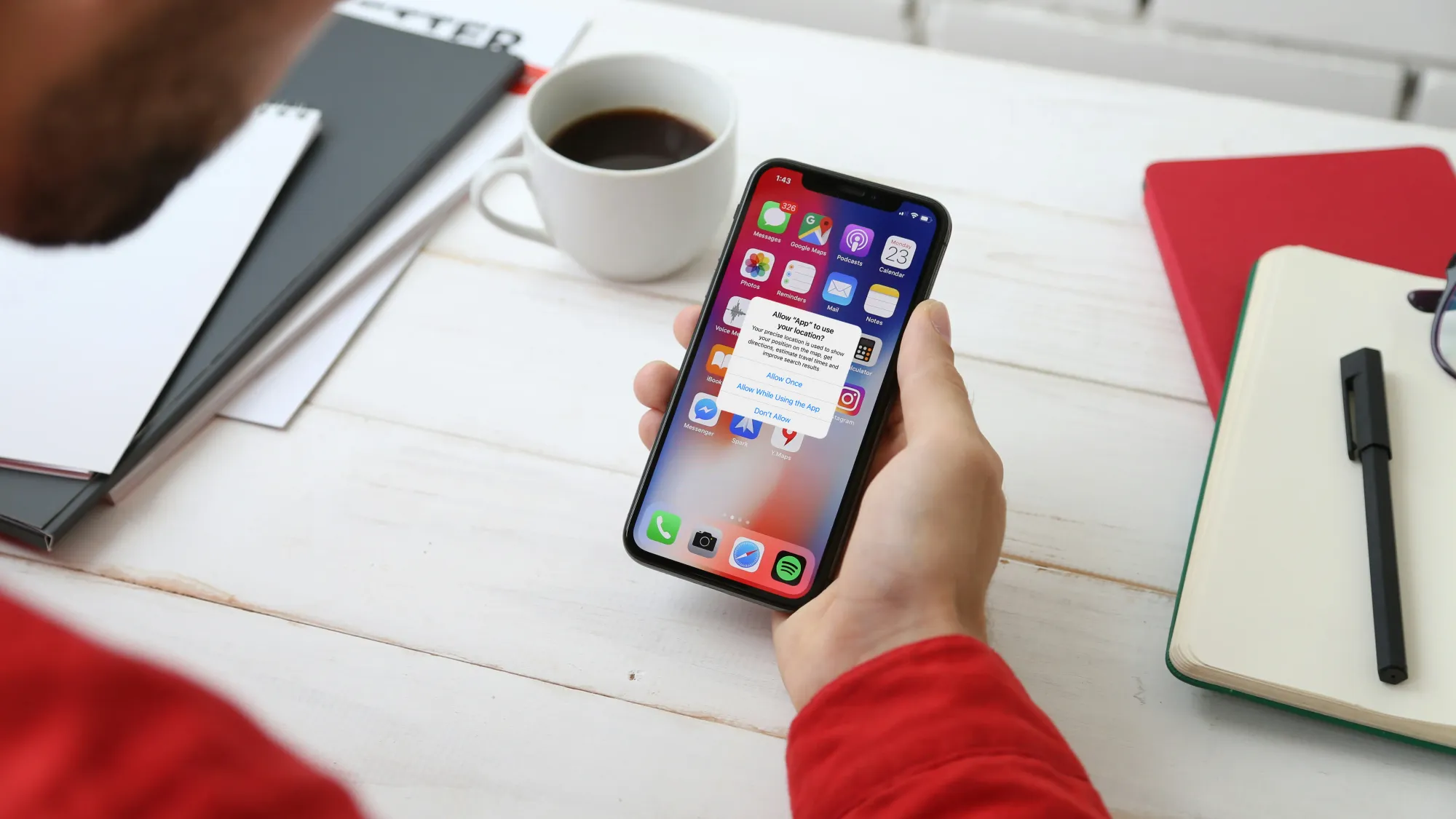
Permission handling in Flutter looks simple until the first real device test. Calling Permission.camera.request() takes one line, but that line only works when the native declarations are correct, the request appears at the right moment, and the app handles every response without trapping the user.
Modern Android and iOS also make permission access deliberately temporary. A user can grant access once, share only selected photos, revoke access in Settings, or have the operating system reset an unused permission. A production app therefore needs a permission flow, not just a permission prompt.
This guide uses the current permission_handler API to build that flow. We will configure Android and iOS, request single and related permissions, handle denial states, and address the areas that cause the most mistakes: storage, notifications, location, and app settings.
- Declare each permission in the native project before requesting it from Dart.
- Ask when the user starts the feature, not during app launch.Request only the permission required for that action.
- Treat
denied, permanentlyDenied, restricted, limited, and provisional as different outcomes.- Do not use
Permission.storage as a universal Android storage solution.- Prefer the system photo or document picker when the user only needs to choose files.
- Recheck access before using a protected feature; permission state can change outside the app.
- Send users to Settings only after explaining why and receiving their confirmation.
How Flutter Permission Handling Actually Works
The permission_handler package gives Flutter a consistent Dart API, but it does not remove Android and iOS rules. A working implementation has three layers:
- Native declaration: Add the permission to
AndroidManifest.xmlor the relevant iOS configuration. - Runtime request: Check and request access through Dart when the feature needs it.
- Product response: Continue, degrade the feature, explain a denial, or offer a Settings link.
Missing any one of these layers creates a broken experience. For example, adding a camera description to Info.plist does not grant camera access, while calling .request() without the description can terminate an iOS app.
With that model clear, we can configure the project correctly.
Install permission_handler
Add the package from the project root:
flutter pub add permission_handlerOr add the current release to pubspec.yaml:
dependencies:
  permission_handler: ^13.0.1
Then fetch dependencies:
flutter pub getThe package currently requires Android projects to compile against SDK 35 or newer. Recent Flutter projects normally inherit a compatible SDK through flutter.compileSdkVersion; older projects should confirm the resolved value in their Android build configuration.
Configure Permissions on Android
Add only the permissions your application uses to:
android/app/src/main/AndroidManifest.xmlFor an app that records video and optionally sends notifications, the declarations could be:
<manifest xmlns:android="http://schemas.android.com/apk/res/android">
    <uses-permission android:name="android.permission.CAMERA" />
    <uses-permission android:name="android.permission.RECORD_AUDIO" />
    <uses-permission android:name="android.permission.POST_NOTIFICATIONS" />

    <application
        android:label="example_app"
        android:name="${applicationName}"
        android:icon="@mipmap/ic_launcher">
        <!-- Existing application configuration -->
    </application>
</manifest>
Declaring a dangerous permission does not grant it. Android 6.0 and later still requires a runtime request. Android 13 and later also requires POST_NOTIFICATIONS before a newly installed app can send most notifications.
Do not copy a manifest containing every possible permission. Unused declarations increase review risk and make the app's privacy claims harder to justify.
Configure Permissions on iOS
iOS uses purpose strings in:
ios/Runner/Info.plistEach message should explain the user-visible feature, not repeat a generic sentence such as “This app needs camera access.”
<key>NSCameraUsageDescription</key>
<string>Use the camera to scan receipts and attach them to an expense.</string>

<key>NSMicrophoneUsageDescription</key>
<string>Record audio while creating a video expense note.</string>

<key>NSPhotoLibraryUsageDescription</key>
<string>Select existing receipts from your photo library.</string>

<key>NSLocationWhenInUseUsageDescription</key>
<string>Add the current trip location while this screen is open.</string>
Apple describes NSCameraUsageDescription as the message that tells people why the app is requesting camera access. If a protected API is used without its required purpose string, iOS can terminate the app.
Enable Only the Required iOS Permissions
If the project uses CocoaPods, permission_handler uses preprocessor macros to include the native permission code you need. Add the relevant values inside the existing post_install block in ios/Podfile:
post_install do |installer|
  installer.pods_project.targets.each do |target|
    flutter_additional_ios_build_settings(target)

    target.build_configurations.each do |config|
      config.build_settings['GCC_PREPROCESSOR_DEFINITIONS'] ||= [
        '$(inherited)',
        'PERMISSION_CAMERA=1',
        'PERMISSION_MICROPHONE=1',
        'PERMISSION_PHOTOS=1',
        'PERMISSION_LOCATION_WHENINUSE=1',
      ]
    end
  end
end
Keep only the macros that match the app's actual permissions. If the project uses Swift Package Manager instead, the current package detects enabled permissions from the app's Info.plist; it requires Flutter 3.24 or newer and Xcode 15 or newer.
For a CocoaPods project, run this after changing the iOS permission configuration:
cd ios
pod install
cd ..
Now the native projects know which permissions may be used. The next step is to request them without duplicating permission logic across every screen.
Let’s Build Your Flutter App Together!
Work with our expert team to turn your app idea into a fast, stunning Flutter product.
Request a Single Permission
A small service keeps the operating-system result separate from navigation and UI decisions:
import 'package:permission_handler/permission_handler.dart';

class AppPermissionService {
  Future<PermissionStatus> requestCamera() async {
    final currentStatus = await Permission.camera.status;

    if (currentStatus.isGranted) {
      return currentStatus;
    }

    if (currentStatus.isPermanentlyDenied || currentStatus.isRestricted) {
      return currentStatus;
    }

    return Permission.camera.request();
  }
}
Call this method when the user taps “Scan receipt,” not while the splash screen is loading. The screen can then open the camera only when the returned status is granted.
Checking before requesting is useful because the OS does not show another prompt for already granted access, restricted access, or a permanently denied permission.
Understand Every Permission Status
The package exposes more than granted and denied:
| Status | What it means | Recommended response |
granted | The feature has the requested access | Continue with the feature |
denied | Access is unavailable, but another request may be possible | Keep a fallback and request again only in context |
permanentlyDenied | The system prompt is no longer available for that permission | Explain the impact and optionally offer a Settings button |
restricted | The OS or device policy blocks access | Explain that the app cannot change the restriction |
limited | Only part of the resource is available, most notably the iOS photo library | Use the available items and offer a user-triggered way to change selection |
provisional | Notification access is granted with reduced interruption on supported Apple platforms | Respect the quieter delivery mode |
Do not collapse limited into denied. If a user shares three photos, the correct response is to show those three photos—not to keep demanding full-library access.
Handle Permanent Denial Without Trapping the User
Once the operating system stops presenting a permission prompt, Settings may be the only recovery path. Keep the redirection explicit:
import 'package:permission_handler/permission_handler.dart';

Future<bool> openSettingsAfterConfirmation({
  required PermissionStatus status,
  required bool userConfirmed,
}) async {
  if (!status.isPermanentlyDenied || !userConfirmed) {
    return false;
  }

  return openAppSettings();
}
Pass userConfirmed: true only after your own dialog explains the unavailable feature and the user taps “Open Settings.” Do not redirect immediately after a denial. That replaces one unwanted interruption with another and gives the user no context. Also avoid naming a wrapper method openAppSettings and then calling openAppSettings() inside it; that creates accidental recursion instead of invoking the package function.
When the user returns from Settings, check the permission again. Do not assume that opening the page means access was granted.
Request Multiple Permissions for One Feature
Batch permissions only when they support the same user action. Recording a video can reasonably require both camera and microphone access:
import 'package:permission_handler/permission_handler.dart';

Future<bool> requestVideoRecordingPermissions() async {
  final statuses = await <Permission>[
    Permission.camera,
    Permission.microphone,
  ].request();

  final cameraGranted = statuses[Permission.camera]?.isGranted ?? false;
  final microphoneGranted =
      statuses[Permission.microphone]?.isGranted ?? false;

  return cameraGranted && microphoneGranted;
}
Do not batch camera, contacts, location, photos, and notifications because the app may need them eventually. A wall of unrelated prompts gives users no clear reason to approve any of them.
On Android, shouldShowRequestRationale can help determine whether an educational explanation is appropriate before another request:
import 'package:permission_handler/permission_handler.dart';

Future<bool> shouldExplainMicrophonePermission() {
  return Permission.microphone.shouldShowRequestRationale;
}
The rationale belongs in your Flutter UI. The app cannot customize the text inside the system permission dialog.
Manage Notification Permission
Notification access should be requested when the benefit becomes concrete—for example, after a user enables order updates or creates a reminder.
import 'package:permission_handler/permission_handler.dart';

Future<PermissionStatus> requestNotificationPermission() {
  return Permission.notification.request();
}
For Android 13 and newer, declare POST_NOTIFICATIONS in the manifest. New installations begin with notifications disabled until the user grants access. Earlier Android versions do not use that runtime permission, but users can still disable notifications in system settings.
iOS does not require an Info.plist purpose string for standard notifications, although the permission still needs to be enabled in the package's CocoaPods configuration when that integration method is used.
Manage Location Permission and Location Services
A granted permission does not mean the device's location service is enabled. Check both:
import 'package:permission_handler/permission_handler.dart';

Future<bool> canUseForegroundLocation() async {
  final serviceStatus =
      await Permission.locationWhenInUse.serviceStatus;

  if (!serviceStatus.isEnabled) {
    return false;
  }

  final permissionStatus =
      await Permission.locationWhenInUse.request();

  return permissionStatus.isGranted;
}
Background location is a separate, more sensitive request. Obtain locationWhenInUse first, let the user reach a feature that genuinely requires background updates, and then request locationAlways. Requesting both together can be ignored on modern Android.
If foreground access is enough, do not declare or request background location. It creates extra platform review requirements without improving the feature.
Handle Storage and Photo Access Correctly
The old pattern of requesting Permission.storage before reading or writing any file is no longer valid across Android versions.
On Android 13 and newer, Permission.storage maps to the deprecated READ_EXTERNAL_STORAGE and WRITE_EXTERNAL_STORAGE permissions and returns denied. If an app maintains its own media library browser, use the media-specific permissions instead:
Permission.photosfor imagesPermission.videosfor videosPermission.audiofor audio files
The matching Android declarations are READ_MEDIA_IMAGES, READ_MEDIA_VIDEO, and READ_MEDIA_AUDIO. Android 14 also lets users grant access only to selected photos and videos, so the feature must support partial access rather than assuming the whole library is visible.
For a simple “Choose photo” or “Attach document” action, prefer the system photo picker or document picker. Android's photo picker grants access only to the selected items and avoids broad media permission. This is both easier to explain and less likely to trigger store-policy concerns.
When Is MANAGE_EXTERNAL_STORAGE Appropriate?
Almost never for a normal consumer app. It is a special all-files permission intended for core use cases such as file managers, backup tools, antivirus apps, and document-management products. Google Play reviews apps that request it, and the user grants it from a Special App Access screen rather than a normal runtime dialog.
Use the Storage Access Framework, MediaStore, a picker, or the app's private directory unless broad file access is essential to the product's primary function.
Recheck Permission State After App Resume
Never save “camera granted” or “photos denied” permanently in local storage. The user can change permissions in Settings, Android can reset permissions for unused apps, and limited media access can change while the app is backgrounded.
Recheck immediately before the protected operation. Screens that send users to Settings should also refresh their state when the app resumes.
This matters for one-time permissions too. Android can grant camera, microphone, or location access temporarily and revoke it after the app leaves the foreground.
Permission UX That Users Can Trust
A technically correct request can still be poor UX. In production apps, follow these rules:
- Ask immediately after a relevant user action.
- Explain the feature benefit before sensitive or unexpected requests.
- Keep the explanation specific: “Scan this QR code” is better than “Improve your experience.”
- Provide a usable fallback when access is denied.
- Avoid repeated prompts after the user has said no.
- Accept limited access whenever the feature can still work.
- Remove declarations for permissions the app no longer uses.
The system dialog identifies the protected category; your surrounding UI must explain why this specific app needs it.
Let’s Build Your Flutter App Together!
Work with our expert team to turn your app idea into a fast, stunning Flutter product.
How to Test Flutter Permission Flows
Permission code that works on one developer phone is not finished. Test at least these states on Android and iOS:
- Fresh installation before any request
- Permission granted on the first request
- Permission denied once
- Permission permanently denied where the platform supports it
- Permission revoked from Settings while the app is backgrounded
- Limited photo-library access
- Camera, microphone, or location granted only once
- Location permission granted while location services are disabled
- Android notification permission before and after Android 13
- App upgrade with permissions already granted or denied
Uninstalling and reinstalling is useful for a fresh flow, but it does not replace testing denial and upgrade states. Use real devices for final verification because simulators do not reproduce every system service, policy, or vendor-specific Android behavior.
Wrap the package behind a small permission service so business logic can be unit-tested with controlled statuses. Keep the real system-dialog checks in integration or device tests.
Common Flutter Permission Problems
The permission always returns denied
Check the native declaration first. On iOS, confirm the Info.plist key and CocoaPods macro or Swift Package Manager configuration. On Android, confirm the manifest entry and verify that the permission still exists for the device's API level.
Permission.storage is denied on Android 13+
That permission represents Android's removed legacy storage permissions. Use the system picker or the appropriate photos, videos, or audio permission.
The iOS app closes when requesting access
The required usage-description key is probably missing from Info.plist. Add the key with a truthful purpose string, confirm the corresponding package configuration, clean the build, and test again.
Opening Settings does not change the result
Opening Settings does not grant anything. Wait until the app resumes, request the current status again, and update the UI from that result.
Location permission is granted, but location still fails
Check serviceStatus. The device-level location service may be disabled even though the app has permission.
Frequently Asked Questions
What is the correct Flutter permissions package?
The commonly used package is permission_handler. “Flutter permission handler” describes its purpose; it is not a separate package named flutter_permission_handler.
Should I check permission status before every protected action?
Yes. Permissions can be revoked, reset, restricted, or reduced to limited access outside the current screen. Treat the operating system as the source of truth.
Can I request every permission when the app starts?
You can technically trigger requests early, but you should not. Android's official guidance recommends asking in context when the user starts the feature. Unrelated startup prompts provide little reason to approve access.
How do I open app settings in Flutter?
Call openAppSettings() from permission_handler after the user confirms they want to leave the app and change a permanently denied permission. Check the status again when they return.
How do I request camera and microphone together?
Call .request() on a list containing Permission.camera and Permission.microphone, then inspect both entries in the returned map. Batch them only when one feature, such as video recording, needs both.
Do I need MANAGE_EXTERNAL_STORAGE to upload a file?
No. A system picker can give the app access to a user-selected file without all-files permission. Reserve MANAGE_EXTERNAL_STORAGE for approved products whose core function genuinely requires broad device-file access.
Why does photo access return limited?
The user shared only selected photos rather than the complete library. Show the accessible items and provide a deliberate control for changing the selection; do not treat limited access as a denial.
Conclusion
Reliable permission handling starts before .request() and continues after the system dialog closes. The native declaration must match the Dart permission, the prompt must appear in context, and every status needs a deliberate product response.
The most important implementation choice is restraint. Ask for the smallest access the feature needs, accept partial access when possible, and make denial a supported state. That approach keeps the code predictable while giving users a reason to trust the app.

Sarafathulla S
I'm a web and mobile developer with 5 years of experience in React and React Native, creating innovative solutions for complex applications and consistently delivering high-quality projects.